Intro
One of the first tasks I worked on back in 2022 was writing a kernel driver. Sounds pretty straightforward right! It’s not that easy as it sounds, go to Visual Studio and create new project, …etc. The most important thing was understanding what I’m dealing with, it’s neither a web app nor normal desktop application that you can build and make it do whatever you want. A tiny bug in your code can’t be errored out in the console or even see a red message says something is wrong in a specific line of your code. It can crash the whole system, blue screen appears with some weird message you won’t be able to understand what it means. To cut the chase, in this blog post I’ll dive a bit deeper into some specific internals of Windows and how the transition between user and kernel space is happened leaving a space for those who are interested to understand more how things work under the hood.
Windows Architecture
As you can see, the red line in the diagram below separates user mode from kernel mode components. Some of the applications you see in Windows run in user mode which has user power privileges and others, that are hidden, run in kernel mode which has kernel privileges that’s also have the full power.
Let’s imagine you want to create a file from the right click menu, it will call some Windows API function from Subsystem DLLs, CreateFile for example, this API will access another native API inside the lowest layer in user mode NTDLL.DLL which is the core library of Windows OS. This layer is also responsible for the transition between user and kernel space.
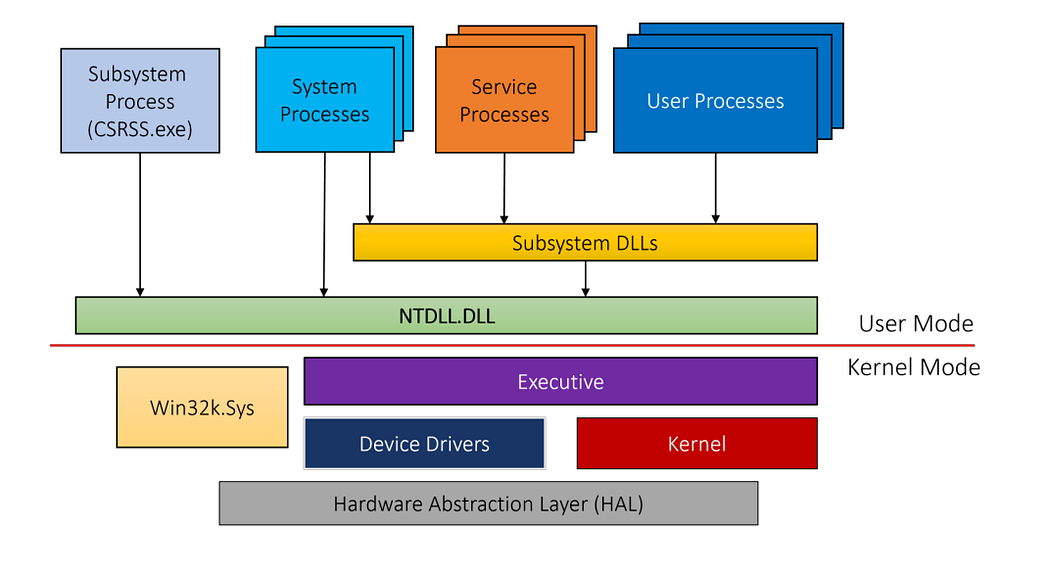
After that, it goes to the Executive part, it consists of many OS components such as (IO manager, Process manager, memory manager, …etc.). Then, some of the device drivers will take place to handle that call and finally will go the last layer HAL in order to create the file on the disk.
Additionally, all the GUI calls will take place through the graphics interface Win32k.sys that handles all the graphics you see on the screen. On top of that, there’re services which is non UI processes and it starts when Windows boots up and runs in the background. There’re also bunch of other system processes that are always running and if any of them crashes it could crash the whole system or making any crucial component not work.
Windows Objects
Unlike Linux, Windows is an object-based OS which means everything is based on objects not files. Simply, an object is a structure in memory that has some information described as following:
- Object Name : Name of the object
- Object Directory : Directory that the object resides in
- Security Descriptor: Tell which user/tokens can access this object
- Open Handle Count : Count of the open handles to this object
- Open Handle List : List of all the handles to this object
- Pointer Count : Count of the pointers to this object
- Object Type : Another object describes the type of this object
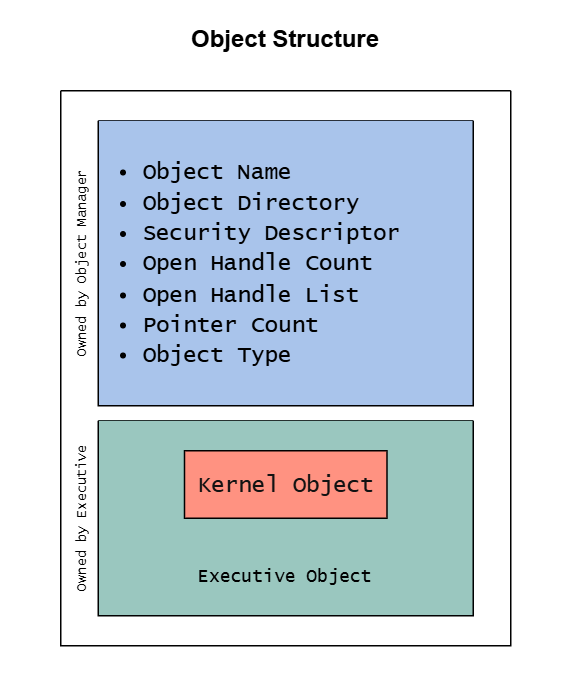
There’re a lot more undocumented object’s attributes rather than I described above that can be seen later.
In Windows, objects are managed by Object Manager that’s part of the Executive component in the kernel space as described earlier. Part of the object structure is owned by the Executive and it’s called Kernel Object. Some Windows APIs exposes object types such as:
- Process (
CreateProcess,OpenProcess) - Thread (
CreateThread,OpenThread) - File (
CreateFile) - Event (
CreateEvent,OpenEvent) - Mutex (Mutant) (
CreateMutex,OpenMutex)
And of course there’re bunch of other types that can been viewed using WinObj from SysInternal Suite.
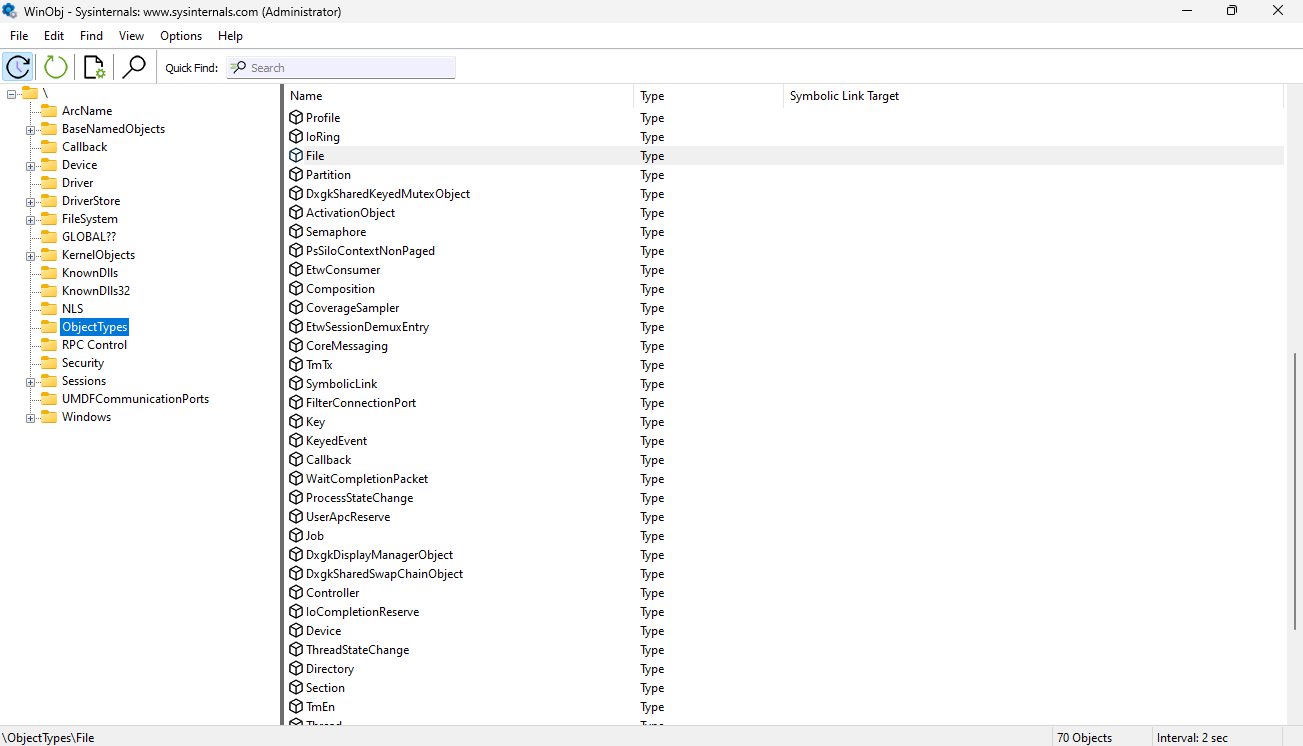
Objects are like units in kernel space and user space handles can point to those objects.
Object Sessions
As we explored above what’s an object and how it relates to Windows kernel. Another additional feature that the object manager provides is something called session. Sessions can be related to each logged in user on the system and each session should have its own objects. All the objects created under specific session can be found in BaseNamedObjects folder and that folder is under another folder named by the session number \Sessions\<session number>\BaseNamedObjects.
Objects in Kernel
Moving a little bit into action in order to understand more what I’m talking about. Let’s have a deeper look on objects inside Windows kernel. We shall first enable debug mode on Windows using this command bcdedit /debug on, then restart your machine. We’ll be using WinDbg.exe, one of the handy tools that can be used to start debugging and see all the objects’ details.
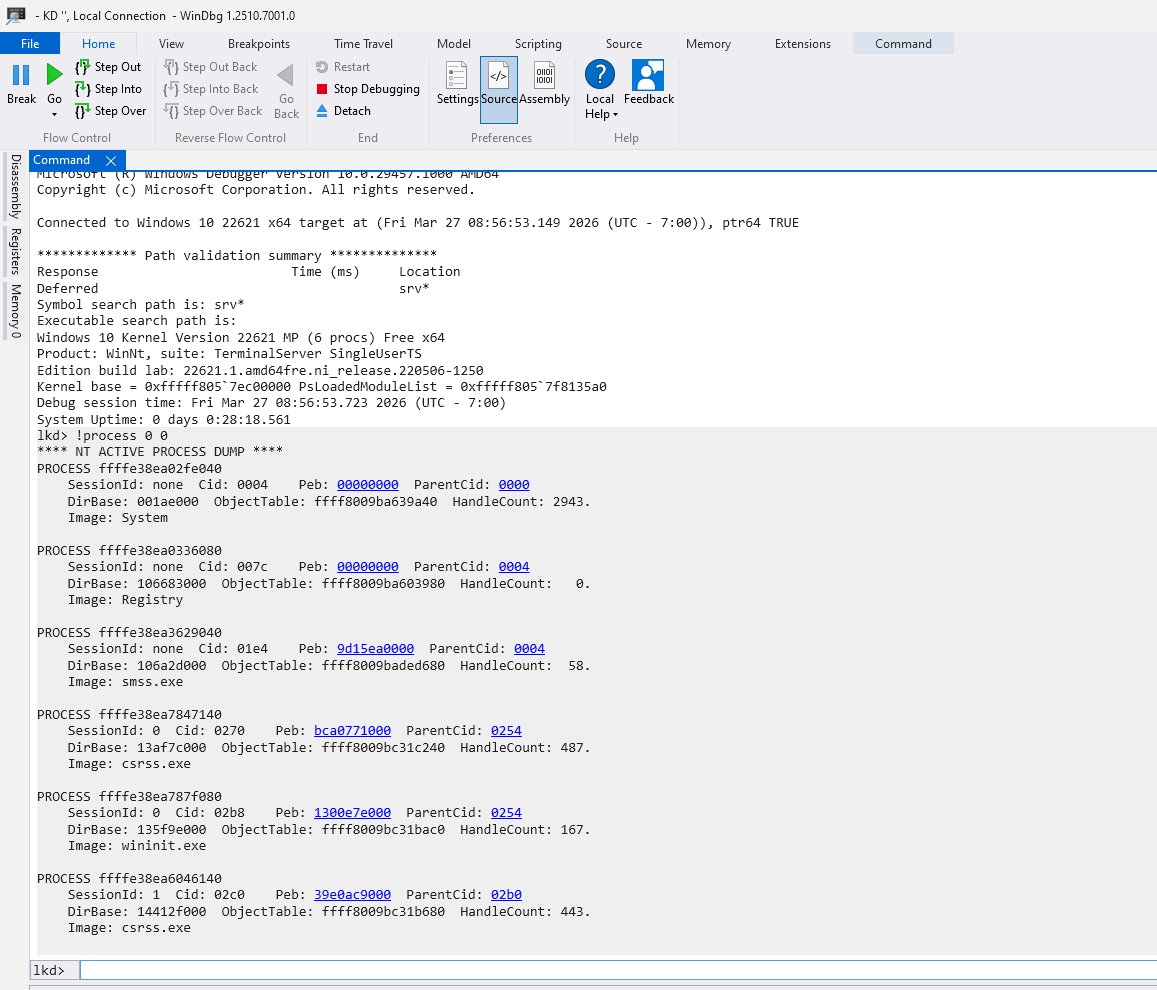
You can use this command !process 0 0 in order to enumerate all the running processes. Let’s have a look into smss.exe process which at the address ffff8009baded680. We can see the object header address by typing this !object ffff8009baded680 command.
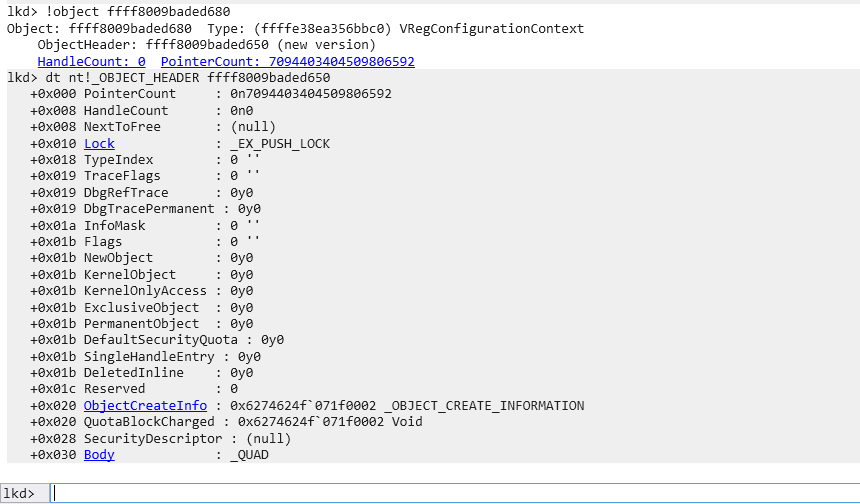
As you can see, the smss.exe process object details like PointerCount and SecurityDescriptor.
Note that all the numbers while debugging should be treated as hex values.
We can also see the object type itself named VRegConfigurationContext which has the following address ffffe38ea356bbc0. And as we can see there’re only 6 objects of this type in the whole system.
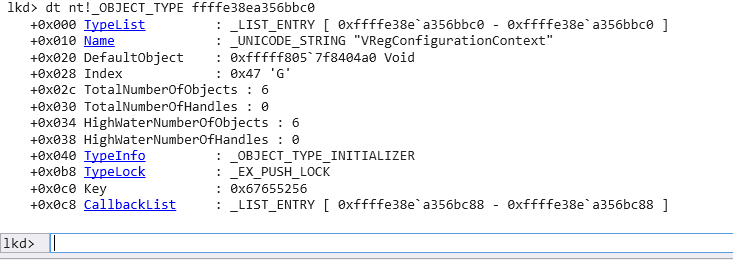
Windows Handles
Now and after we discussed what is an object in terms of Windows and how it is structured in kernel. The only question that everyone should ask here, how can an application or a program break that red line and access those objects? The simple answer is through handles.
Basically, let’s imagine a handle is like a number or an address points to a specific object that the process wants to create or open. In other words, a handle is an indirect pointer to an existing object in kernel space. Handles can also be shared across processes which means multiple processes can share the same object through multiple handles.
Same handle can’t be accessed by more than one process since each process has its own handle table.
Let’s have a quick look into handles inside Process Explorer:
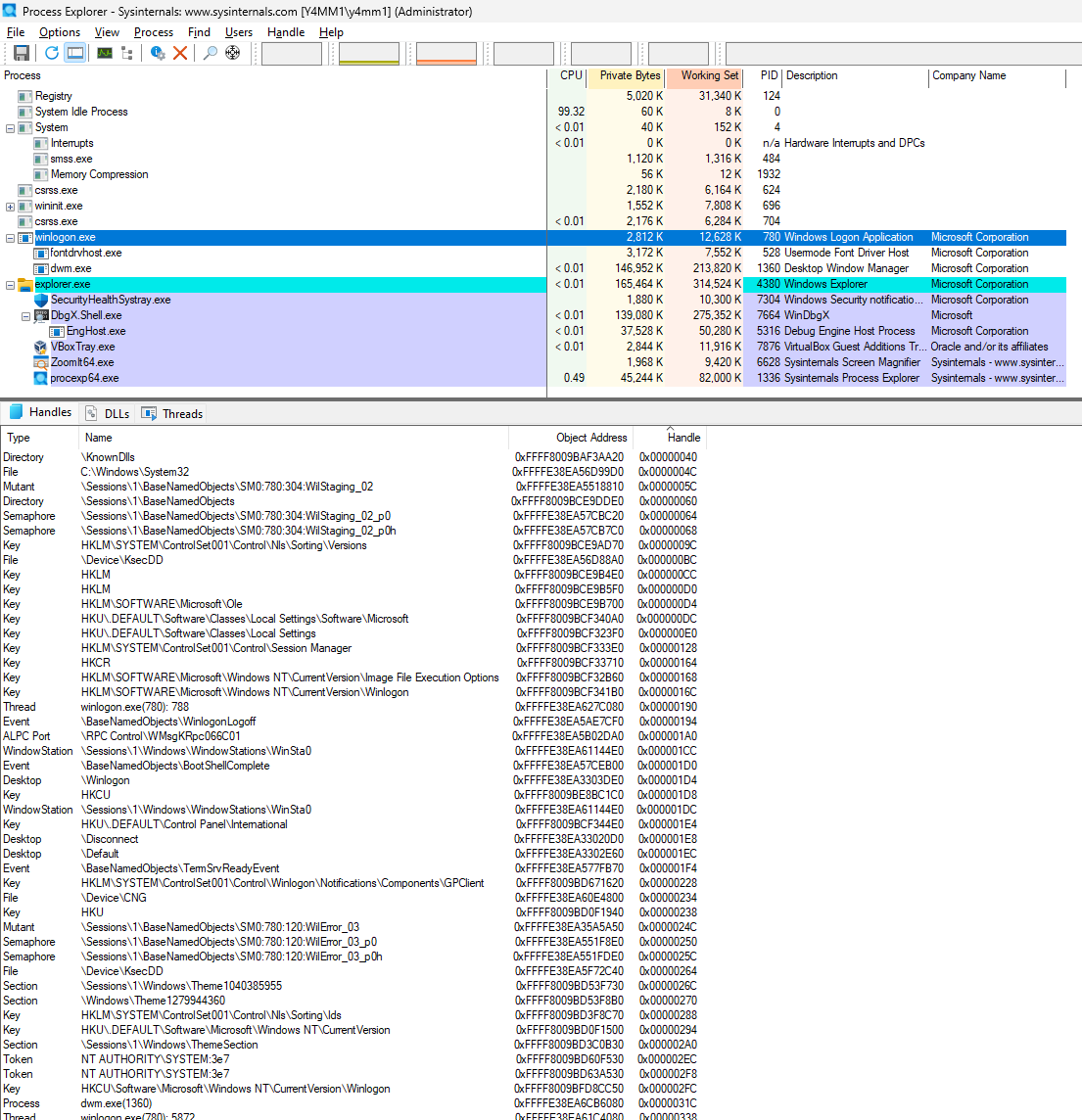
As we can see, the highlighted process winlogon.exe has several handles and each handle gets a pointer as seen in the last column as well as the Object Address which represents the actual address in the kernel space in addition to its type name.
Handle pointers are always multiple of 4 and not all handles have to have a type name so there’re a lot more unnamed handles which are hidden in this example.
Handles Structure
Handles in user space can be retrieved by processes by calling Create or Open function from Windows API. When the call is successful, a handle is returned. However, if the Object is named and while using Create with an existing name a handle is returned to the same Object, otherwise It’ll create an object in the kernel space with the name provided. In addition to that, one way handles can be shared is by the name of the object that process created; only if it’s known.
Now, let’s have a look into handle layout:
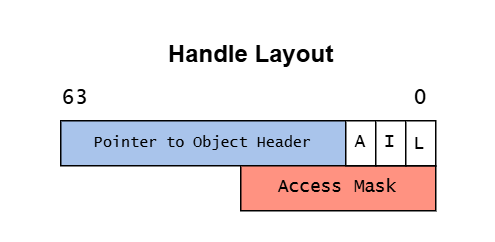
As we can see, on 64-bit system a handle has a pointer to the object header as well as a 3 bits described as follows:
- [A]udit : Used for auditing purposes.
- [I]nherit : Tells if this handle should be inherited or not.
- [L]ock : Lock handle entry during modifications.
After that, there’s an access mask which represents bits flags and tells what can this handle actually do. Imagine it as a security guard for each handle that grants the handle specific permissions to do some operations and deny others. It also has to be asked while obtaining a handle to an object.
Calling a handle with the wrong access mask will result in a null return and cause the operation to fail.
Sharing Objects
As we knew, each handle is private to its containing process so a pointer to a handle can’t be access by another process. The question here is how an object can be shared between processes? Sharing objects in Windows can be done by at least 3 ways.
-
The most common one is sharing by name. So, if an object has a name you can open the same object by the same name, so we can have several handles pointing to the same object. Sometimes, this method can be dangerous due to the global name assigned to the object, so anyone can open that object and try to miss with it.
-
The second option is sharing by handle inheritance. As we seen above in the handle structure is set to this purpose if it’s 1 so that handle can be shared with other processes otherwise will result in denying access to this object.
-
The last method is by duplicating a handle to a target process. Simply, a process can pass some of its own handles to a specific process. The thing with this option is the target process doesn’t know if a new handle has been passed to it. So, there should be an IPC mechanism to notify the target process that this handle is available with a specific value, otherwise this handle can still be exist in the target process even if the source process is terminated.
Sharing objects can result in some security issues if it is done incorrectly.
Conclusion
In this blog post, we’ve discussed object manager and how objects are structured in kernel. Additionally, we knew that user space work only with handles and how those handles related to windows objects. Dealing with kernels is always frustrating at some point that’s why I’ve decided to explore some aspects for those who are interested in simple terms. Understanding Windows objects and internals can assist malware analysts or reverse engineers to get more insights especially when a new technique is used for injecting a malicious code into memory and how is that happening behind the scenes. In the upcoming posts, I’ll discuss more the security concerns related to that and how attackers can manipulate those objects to do some malicious stuff on the system.